
HEIC Won't Open in Windows 11?
Windows 11 can display HEIC photos, but the required HEIF and sometimes HEVC components may be missing, disabled, or outdated. First update Photos and install Microsoft's official HEIF Image Extensions. If the photo must work in an older app or upload form, convert a copy to JPG while keeping the HEIC original.
Tested: July 31, 2026 · Windows 11 24H2 · Microsoft Photos · Chrome 138
Use the Windows-native fix first
- Open Microsoft Store and install or update HEIF Image Extensions.
- Update Microsoft Photos, then restart Photos and open the file again.
- If Windows asks for an HEVC component, follow the Store prompt. Do not download codec packs from unknown sites.
Microsoft documents HEIF support through its Store extension. Apple also notes that Windows may require both a HEIF plug-in and HEVC decoder for media from Apple devices.
Microsoft HEIF Image Extensions · Apple: iCloud Photos on a PC
When conversion is the better fix
Convert a copy when the file opens in Photos but not in an older editor, document app, browser upload field, or recipient's device. JPG is broadly supported, but it uses lossy compression and cannot retain every HEIC feature.
Privacy and quality trade-off
Use the balanced quality setting for normal sharing. Choose the metadata control deliberately: preserving basic camera details can be useful for a photo workflow, while removing location is safer for public uploads. Always compare dimensions and inspect the output before deleting the source.
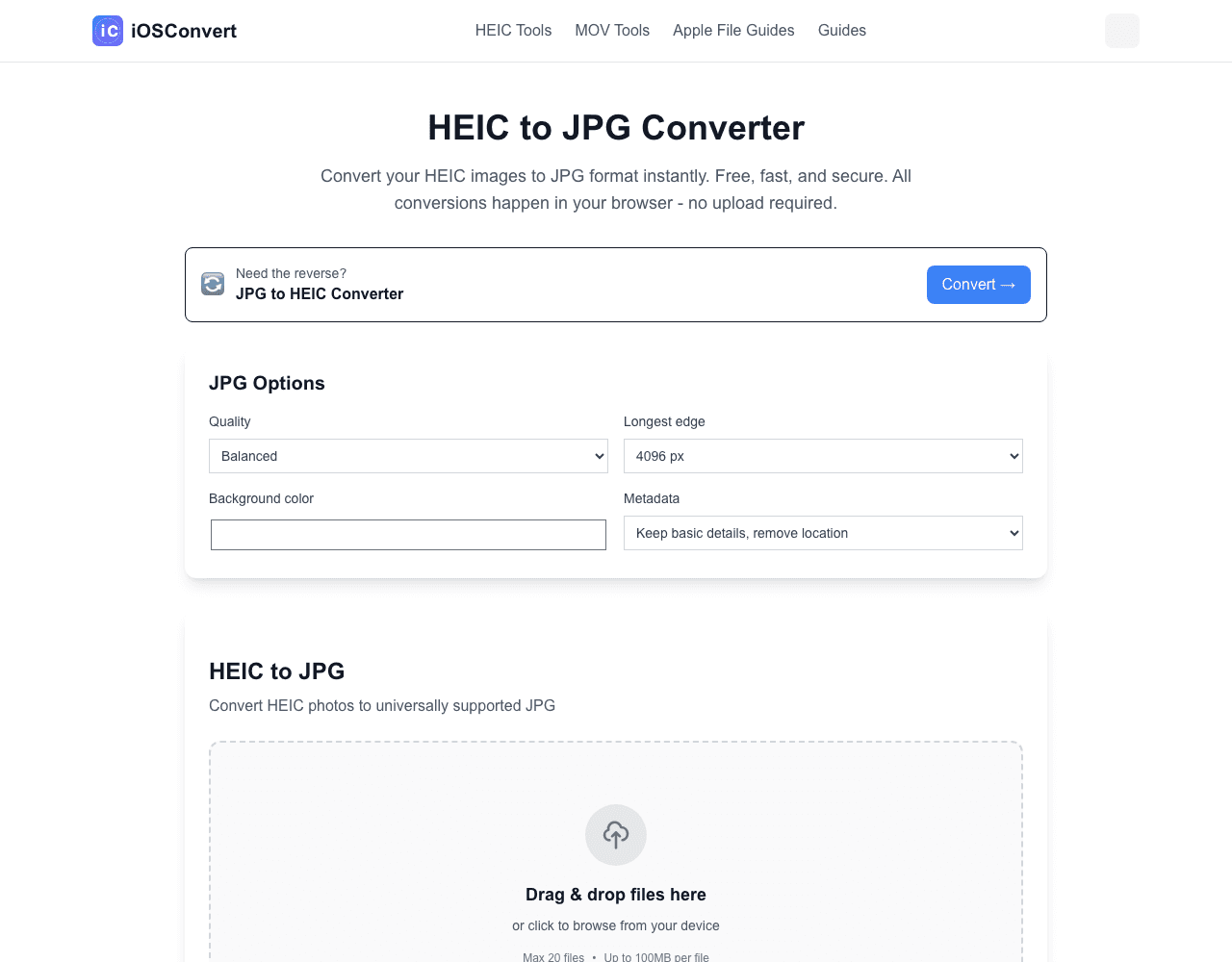
Conversion runs locally in your browser. Keep the original file until you have checked the result.