
What to Do When a Website Won't Accept HEIC
An upload form may reject HEIC because its accepted file types, image decoder, or downstream review software only supports JPG and PNG. Renaming the extension does not convert the image. Export or convert a copy to JPG, confirm its dimensions and file size, then upload that copy while retaining the original HEIC photo.
Tested: July 31, 2026 · macOS 15.5 · iOS 18.5 · Safari 18.5 · Chrome 138
Check the upload requirement
Read the form's accepted types and size limit. A message such as “JPG, JPEG or PNG only” is a format requirement; “file too large” needs resizing or compression as well. Changing .heic to .jpg changes only the name and usually fails validation.
Native export options
On a Mac, open the photo in Preview or Photos and use File → Export, then select JPEG. Apple documents JPEG as an export option suitable for websites and other photo apps. On iPhone, sharing to a destination that lacks HEIF support may create a compatible copy automatically, but verify the resulting file before relying on that behavior.
Apple: export photos on Mac · Apple: using HEIF media
Prepare a safer upload copy
JPG conversion is lossy, so avoid repeated conversions. Set a longest edge only when the form specifies dimensions. Public forms rarely need camera details or GPS coordinates; remove location metadata unless the destination explicitly requires it.
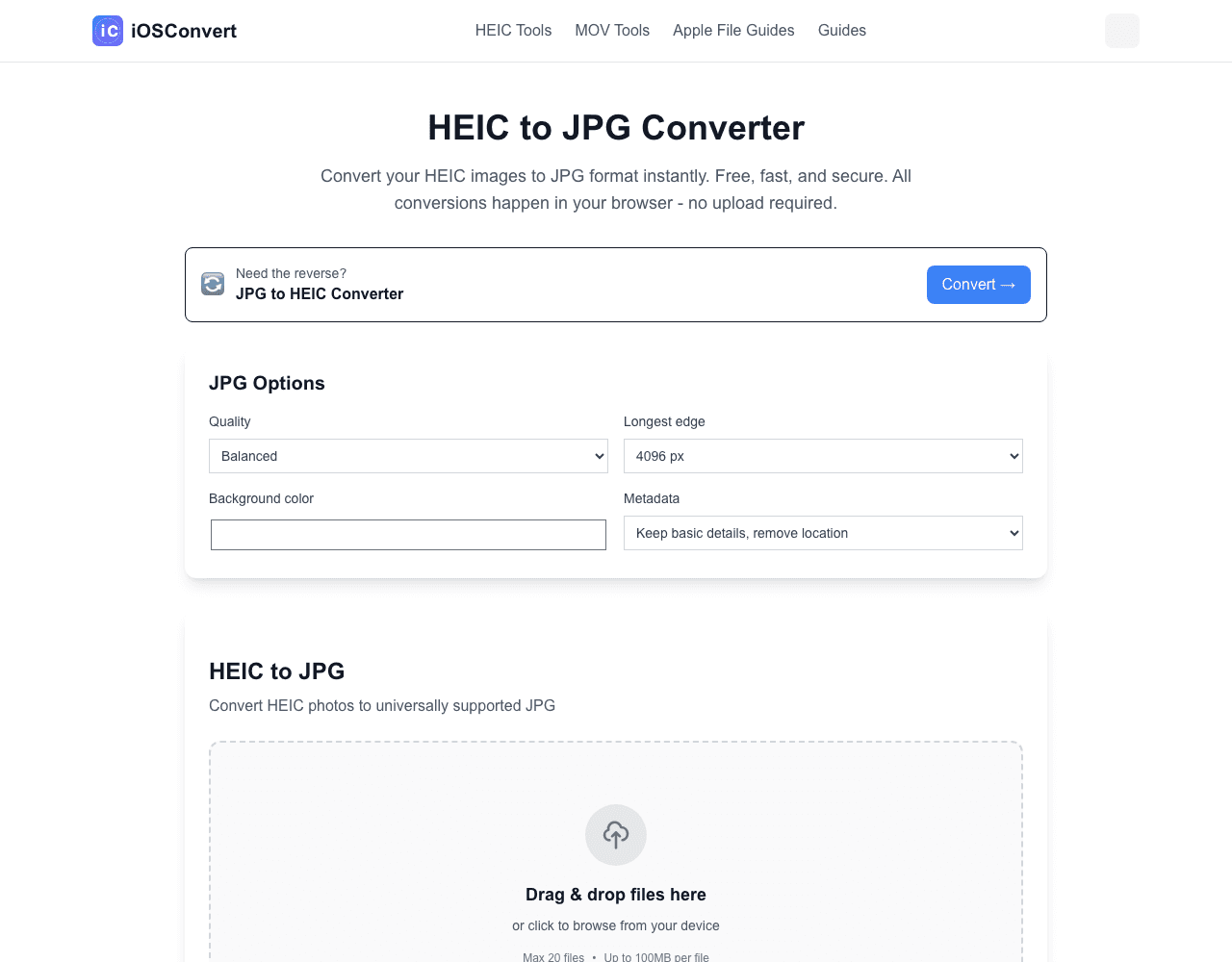
Conversion runs locally in your browser. Keep the original file until you have checked the result.