
How to Convert HEIC to JPG and Control Metadata
HEIC-to-JPG conversion can preserve a limited set of camera and capture fields, remove GPS coordinates, or strip metadata entirely. No browser converter can promise a lossless one-to-one transfer of every HEIC property. Keep the source, choose a policy before conversion, and verify the JPG's date, orientation, dimensions, and location fields afterward.
Tested: July 31, 2026 · macOS 15.5 · Chrome 138 · synthetic EXIF/GPS fixtures
Choose the policy for the destination
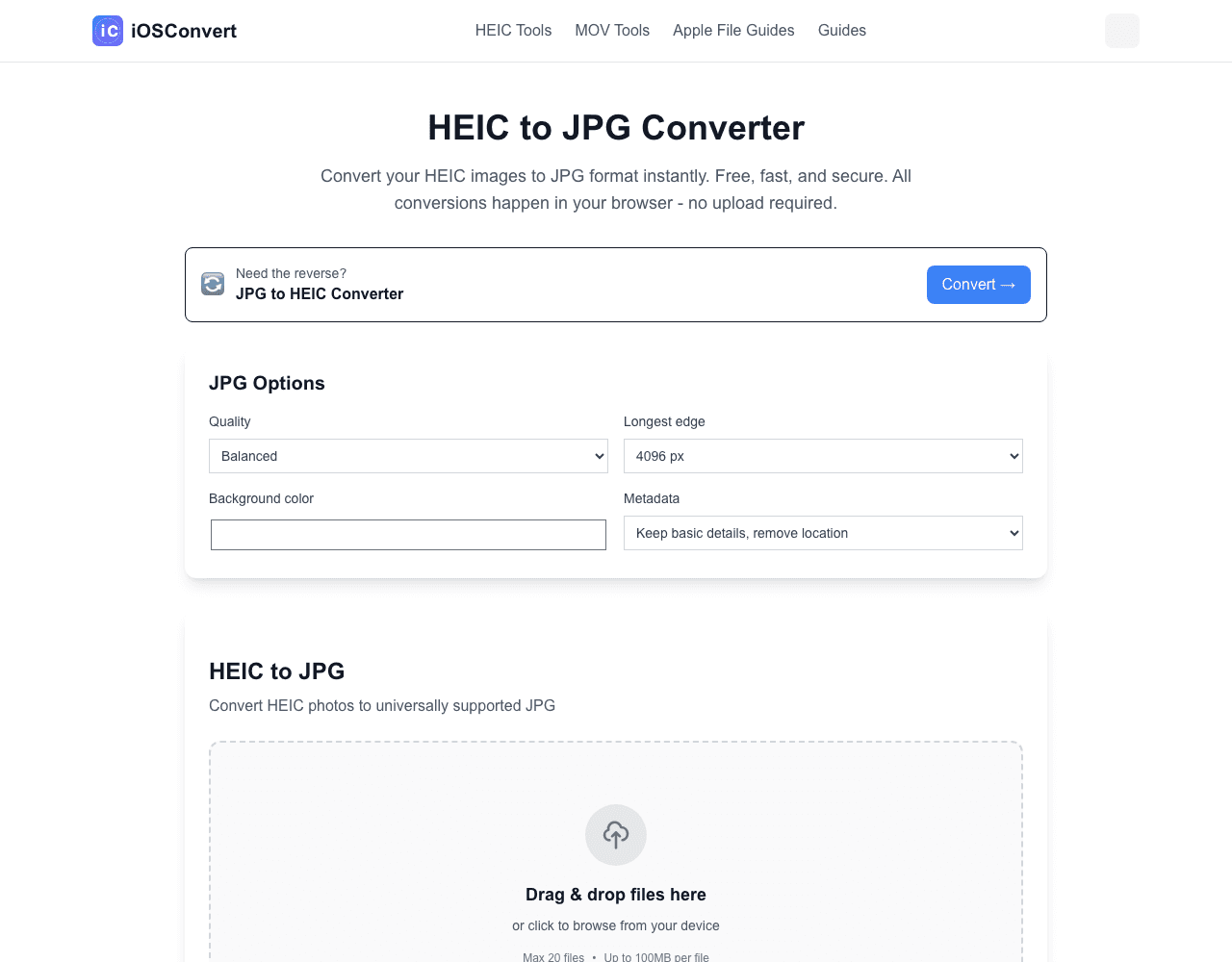
- Keep basic details, remove location: useful default for sharing while retaining supported camera/date fields.
- Remove all: best for public listings, forums, or anonymous examples.
- Preserve supported basic details: useful for a controlled photo workflow, but verify the result.
Why metadata can change
HEIC containers can hold properties that JPEG EXIF cannot represent directly. Decoding to pixels also normalizes orientation. The converter therefore reports the policy applied rather than claiming perfect preservation.
Check location before sharing
Apple explains that camera location coordinates can be embedded in photos and visible to recipients. In Photos, inspect the Info panel before and after export; for public sharing, remove location unless it has a clear purpose.
Apple: manage location metadata · Apple: inspect photo information
Quality cost
JPEG encoding is lossy. Use a single conversion from the original HEIC, select the needed dimensions once, and avoid editing and resaving the JPG repeatedly.
Conversion runs locally in your browser. Keep the original file until you have checked the result.