
Why Did iCloud Download HEIC Instead of JPG?
iCloud preserves photos in their original format, so an iPhone image captured as HEIC may download as HEIC. On iCloud.com, open More Download Options and choose Most Compatible when you need JPEG. Choose Unmodified Originals for archiving or editing. If you already downloaded HEIC, convert a copy locally instead of re-downloading the whole selection.
Tested: July 31, 2026 · iCloud.com Photos · Windows 11 24H2 · macOS 15.5 · Chrome 138
Pick the right iCloud download option
- Unmodified Originals: format as captured or imported; best for archiving and future editing.
- Highest Resolution: best quality for the device, typically still HEIC for iPhone photos.
- Most Compatible: JPEG for photos and MP4/H.264 for videos.
Apple currently exposes these choices under More Download Options on iCloud.com for both desktop and mobile browsers.
Apple: download iCloud photos and videos · Apple: use iCloud Photos on a PC
When to keep HEIC
Keep originals for a photo library, editing, or archival use. HEIC is more storage-efficient and may contain information that does not map cleanly to JPEG. Create compatible copies only for applications and recipients that need them.
Metadata and quality
Most Compatible is convenient but gives less control over compression and metadata. A local conversion lets you choose quality, longest edge, background, and metadata policy, while keeping the source on your device.
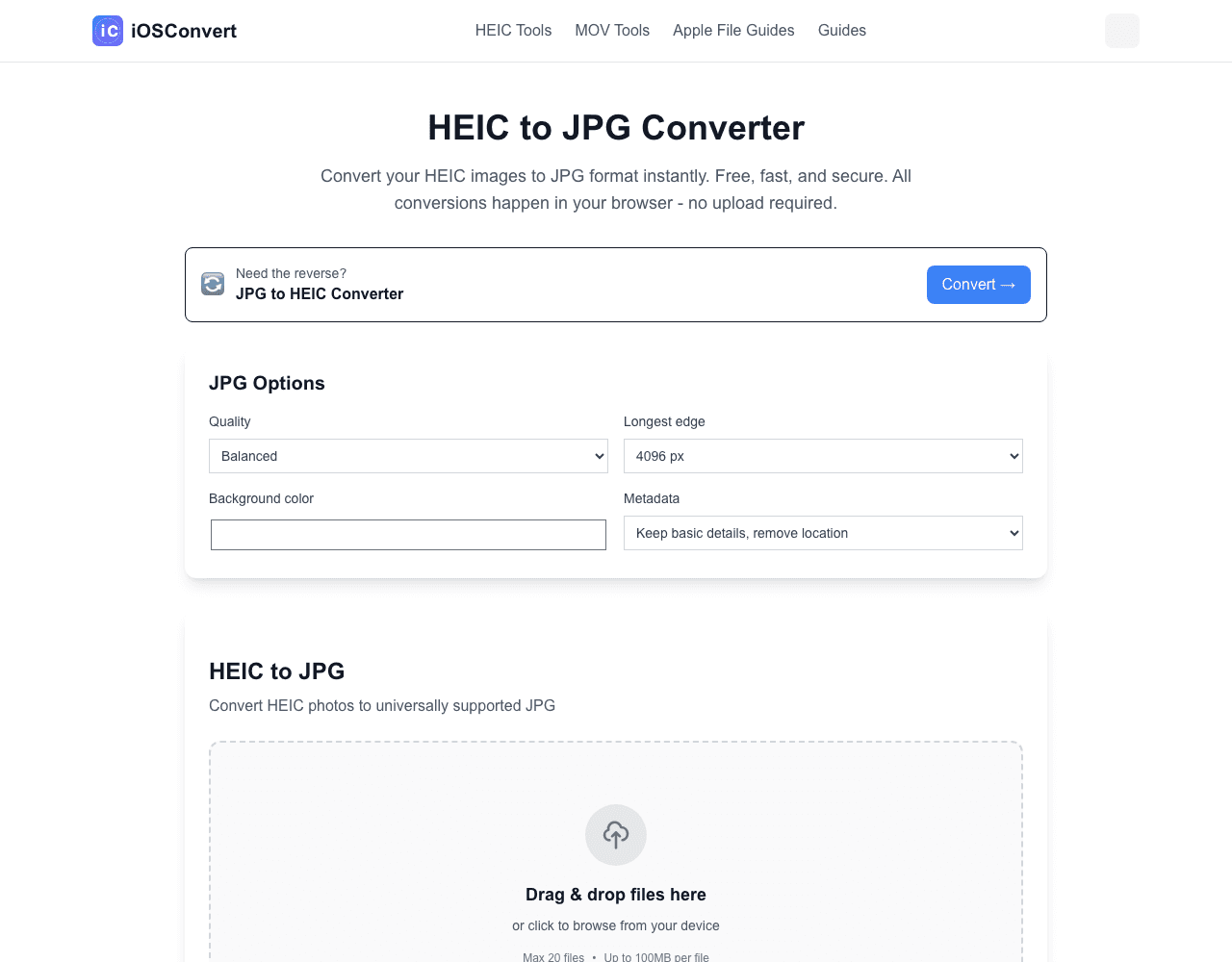
Conversion runs locally in your browser. Keep the original file until you have checked the result.